Summary
Microsoft Teams allows users to share files with other members of the same organization and has special tools for collaborating using those files. In this article you will find information that will help you understand how to use the collaboration functionality of Microsoft Teams in conjunction with your files.
- Viewing the files list
- How to edit office files in Teams
- How to download files from Teams
- How to move or copy files in Teams
- How to rename files in Teams
- How to upload a file in Teams
- How to delete and recover files in Teams
- Sharing files in Teams
- How to find files in channels and chats
OneDrive in Teams stores all your files in one location. Select OneDrive on the left side of Teams for access to the files you need.
OneDrive puts files into different groups so you can find them faster:
- Home lists all the files you’ve recently viewed or edited.
- My files lists all the files and folders from your personal OneDrive.
- Shared shows all the files and folders shared with you and created by you.
- Favorites shows files you've marked as your favorite files.
- Recycle bin shows files that you've deleted.
In Browse files by, you can view files based on:
- People they were shared between.
- Meetings they were shared in.
- Media type.
In Quick access, browse files located in specific Teams channels.
Back to Top
Open and edit files directly in Teams or in their respective desktop or web apps.
Edit a file in Teams
To open and edit a file in Teams, select a file from any of these locations:
- The files list when you select OneDrive on the left side of Teams
- The Files or Shared tab at the top of a chat or channel
- The message where the file was attached
By default, the file opens inside Teams with the standard Office tools available at the top of the screen.
Change your file open preference
To change where you want to open Word, PowerPoint, and Excel files in:
- Select Settings and more > Settings in Teams.
- Select Files and links.
- In File open preference, select the dropdown menu to choose where you want files to open:
- Teams
- Desktop app
- Browser
Your changes will be applied automatically.
Edit an Office file in its desktop or web app
- Right-click a file from any of these locations:
- The files list when you select OneDrive on the left side of Teams
- The Files or Shared tab at the top of a chat or channel
- The message where the file was attached
- Select Open in and choose Desktop app or Open in browser.
If you’re using Teams on the web, you can choose between Teams and Browser. You can also manually choose where a file is opened without changing your default setting by going to the file and selecting More options > Open.
Back to Top
Download a file in a channel
To download a file from a Teams channel:
- Open a channel in Teams.
- Select the Files tab.
- Find the file you want to download and select More actions > Download.
Download a file from OneDrive
To download a file from OneDrive in Teams:
- In Teams, select the OneDrive tab.
- Find the file you want to download and select More actions > Open > Edit in Teams.
- When the file opens, select File > Create a Copy > Download a Copy.
- This option may not be available, depending on permissions set by the file owner.
You can also select a file from the OneDrive tab and select More actions > Download
Change where to save downloaded files
- In Teams for desktop, select Settings and more.
- Select Settings > Files and links.
- Under Downloads > Location, select Change.
- Decide where you want to save files and choose Select Folder.
- Turn the Always ask where to save downloaded file toggle on to choose where to save files each time you download one.
Any future files you download from Teams will be saved to the location you specified.
Back to Top
To move or copy a file in Teams:
- In Teams, select OneDrive > My files.
- Find the file you want to move or copy. To locate a file from a specific channel:
- Find the channel under Quick access or More places....
- Navigate to the channel in the Chat tab and select the Shared tab.
- Hover over the file and select More options > Move to or Copy to.
- Select the folder you want to move or copy the file(s) to.
- Select Move here.
To move or copy multiple files to the same location, hover over each file and select the circled check mark in the left column.
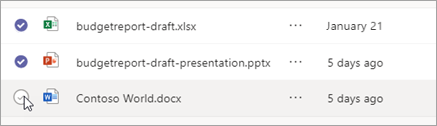
Back to Top
Reorganize your files and folders by renaming them directly in Teams.
Rename a file in OneDrive
To rename a file in OneDrive:
- Select OneDrive in Teams.
- Find the file or folder you want to rename under My Files , or select More actions > Open in OneDrive.
- Hover over the file or folder and select More actions > Rename.
- Enter the new name and select Update to save the new file name.
Rename a file in a channel
To rename a file in a channel:
- Under Chat, go to Channels.
- Select the team you want to delete a file from.
- Select the Files tab.
- Select More actions > Rename next to the file or folder.
- Enter the new name and select Rename.
Back to Top
Upload a file to OneDrive
To upload a file to OneDrive in Teams:
- Open Teams for desktop and select OneDrive.
- Select Add new > Files upload.
- Select a file and select Open.
The file will automatically start uploading.
Upload a file to a channel
To upload a file to a channel in Teams:
- Go to Teams in the leftmost side of Teams.
- Choose the channel you want to upload a file in.
- Drag and drop the file from where it's currently located into the Teams window among the files.
- Select Upload, then select the file (or files) you'd like to upload, and select Open.
Any files you upload will be accessible by any member of your channel.
Back to Top
Use Teams on the desktop or web to delete files. Use SharePoint or OneDrive to recover them.
Delete a file from OneDrive
- Select OneDrive in Teams.
- Select My files.
- Hover over the file you want to delete and select More actions > Delete.
Your file will be moved to Recycle bin.
Recover a file from OneDrive
- Select OneDrive in Teams.
- Select Recycle bin.
- Find the file you want to recover.
- Right-click the file and select Restore.
The file will be restored to the last location it was stored.
Delete a file from a channel
- Under Chat, go to Channels.
- Select the channel you want to delete a file from.
- Select the Files tab.
- Find the file you want to delete.
- Hover over the file and select More options > Delete.
Delete a file from a chat
You can remove a file from a chat message you've already sent by editing the message.
Recover a deleted channel file
- Under Chat, go to Channels.
- Select the channel you want to recover a file in.
- Select the Files tab.
- Select More options > Open in SharePoint.
- In SharePoint, select Recycle bin.
- Hover over the file(s) you want to recover and select the circled check mark in the left column of the file's row.
- Select Restore.
The file will be restored to the last location it was stored.
Back to Top
Share a file from OneDrive in Teams
When you upload a file to Teams, you can share it at any time with other people and groups.
- Select OneDrive in Teams.
- Go to My files.
- Hover over the file you want to share and select Share.
- Do one of the following:
-Select Copy link to get a link you can paste into a chat or email.
-Select Sharing settings to specify people and their permissions for the file.
Or
-Add a name, group, or email.
-Select a permission such as Can edit, Can review, or Can view, or Can’t download.
-Add a message, if you want.
- Select Apply to save changes.
- Select Send.
Share a file in a channel or chat
- Select a channel post or chat message.
- In the compose box, select Actions and apps > Attach file.
- Select a file and add an optional message.
- Select Send.
Back to Top
Each channel and chat in Teams has a Shared or Files tab where you can find a list of files and links shared in channel posts and chat conversations. Each channel also has its own SharePoint document library where you can store files for that specific channel.
To find files in a channel
- In a channel, select the Files tab.
- Search in two ways:
- To search through posts, select In Post. Select Recent to see recently viewed files and links. Select Files to search only through files and Links to search only through links.
- To search the SharePoint library for that channel, select In library.
To find files in a chat
- Select the chat where you want to find files.
- Select the Shared tab at the top.
- Select Recent to see recently viewed files and links. Select Files to search only for files and Links to search only for links.
Back to Top