Body
Summary
Microsoft Teams allows the creation of meetings between members of the same organization and in this article you will find information that will help you understand how these meetings function.
- How to join a meeting
- How to join a meeting without an account
- Scheduling a meeting in Outlook
- Scheduling a meeting in Teams
Join by link
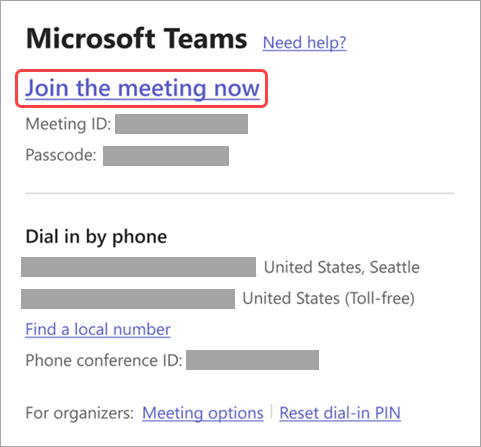
In your meeting invite, select Join the meeting now to join on Teams for web or desktop.
If you already have the Teams app, the meeting will open there automatically.
Join from calendar
- Select Calendar on the leftmost side of Teams.
- Find the meeting you want and select Join.
- Select Join meeting to join the meeting as a participant
Join with a meeting ID from your Teams app
- Select Calendar on the leftmost side of Teams.
- Select Join with an ID. Enter a meeting ID and passcode.
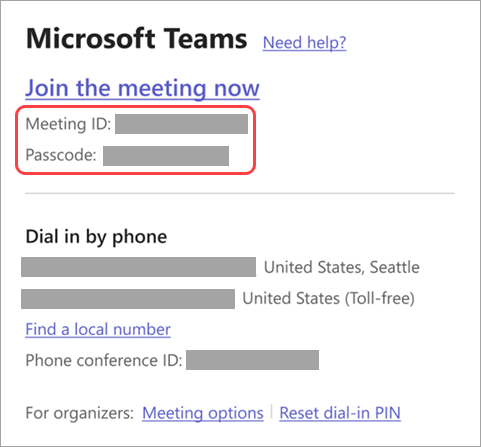
- You can find the meeting ID and passcode:
- In the meeting details from your Teams calendar. Select Details > Show meeting info.
- At the bottom of your Teams meeting invite email.
- Select Join meeting to join the meeting as a participant
Back to Top
Join the meeting before it starts to test your setup from the pre-join screen. From there, you can enter the meeting up to 15 minutes before its start time to troubleshoot or see how Teams works. Meeting participants and organizers will be notified when you enter the meeting.
To join a Teams meeting without signing into an account:
- Open the meeting invite and select the link next to Join or Click here to join the meeting.
- When prompted, select Continue on this browser or Join on the Teams app. You don't need to install the Teams app to join the meeting.
- You can join Teams for web on Microsoft Edge or Google Chrome. You may be prompted to give Teams access to your mic and camera. When you select Allow, you can always turn off your mic and camera once you join the meeting.
- Select Join now.
- In meetings where admin settings prevent unverified people from joining, you’ll be prompted to enter your email address. Enter your email address and select Next. Enter your password if you already have a Microsoft account or select Send code and enter the one-time passcode sent to your email if you don’t have an account. Once verified, select Join now.
Back to Top
Scheduling meetings in the New Outlook
To schedule a Teams meeting on the Outlook desktop app:
- Open Outlook for desktop or web.
- Select Calendar.
- Select New event.
- Next to Title, turn on the Teams meeting toggle.
- From the Calendar dropdown menu, choose the account you want to schedule a Teams meeting with.
- Add meeting details and invite attendees.
- Select Send.
Scheduling meetings in Classic Outlook
To schedule a Teams meeting on the Outlook desktop app:
- Open the Outlook desktop app.
- In the Home tab, select the dropdown arrow next to New Email.
- Select Meeting.
- In the Meeting tab, select the dropdown arrow next to Teams Meeting.
- Select Schedule meeting.
- Teams meeting join info appears below the details.
- Add meeting details and invite attendees.
- Select Set up to change meeting options. Some meeting options may be optimized based on your meeting details, such as number of attendees. In the Set up your Teams meeting pane, select All options to view all meeting options.
- Select Send.
Back to Top
Schedule a calendar meeting
- Select Calendar in Teams.
- Select New meeting.
- Add meeting details and attendees.
- Select Send.
Schedule a meeting from chat
- Select Chat in Teams.
- Select More chat options at the top of the chat.
- Select Schedule a meeting.
- Add meeting details.
- Select Send.
Schedule a channel meeting
- In Teams, select the team you want to schedule a meeting in.
- Add a shared calendar to your team channel.
- Next to Meet now, select the dropdown arrow.
- Select Schedule a meeting.
- Add other attendees who are outside the team.
- Select Send.
Everyone in the team you scheduled the meeting for will receive a personal invite.
Back to Top