Body
Summary
Microsoft Teams allows for direct chat messages between members of the same organization and in this article you will find information that will help you understand how these chat messages function.
- How to start a chat
- Sending files, pictures and links
- How to edit or delete your chats
- How to pin messages
- How to manage group chats
- How to make a call from a chat
Start a chat with another person
- Select New message at the top of your list of chats and channels.
- Enter a person’s name.
- Compose your message in the box at the bottom of the chat.
- To open formatting options, select Format to the right of your message.
- When your message is ready, select Send or press Enter to start the chat.
You can also start a one-on-one chat from someone's profile card. Open it by choosing their picture in a channel or finding their name using the Search box.
Start and name a group chat
A group chat includes multiple people in a conversation, you can include up to 250 people in a group chat. Create a group chat the same way you start a one-on-one chat.
- Select New message at the top of your list of chats and channels.
- Select the down arrow to the far right of To to reveal the Group name section.
- Type a group name.
- Type the names of the people you’d like to add in the To section.
This starts a new conversation. Everyone who has access to the group chat can send messages.
Add people to the conversation
- To add people to a group chat, select View and add participants > Add people.
- Type the names of the people you'd like to chat with. If it is an existing group chat, you can also choose how much of the chat history to include.
- Select Add to add them to the conversation.
Back to Top
Send a link
- To send a link, select Format from beneath the message box.
- Then select Insert link from the top of the message box.
- Add display text and the address, select Insert, or copy and paste the link into the message box, and then select Send.
Or
- Copy a link.
- Select the text you want to link on and select Ctrl+V.
Attach a file or picture
- To include a file or picture in a chat or channel message, select Actions and apps > Attach file.
- Select from the list of recently opened files, or choose to Attach cloud files or Upload from this device, depending on where your file is saved.
Messages with image, video and many types of document attachments will automatically include a preview of the attached files. Those with more than three attachments will include the preview after the message is sent. Messages containing a single PDF or 3D files (GLB, STIL, FBX, .OBJ) can be previewed in line. Select Preview to view the file directly within the chat or channel.
Back to Top
Edit a sent message
You can edit any message that you have sent to a chat or channel.
Hover over the message you want to change and select Edit.
Edit your message, then select Done to save the update.
There's no limit to how many times you can make changes to a sent message.
Delete a sent message
If you need to backtrack and delete something you just sent, go to the message and select More options > Delete.
If you haven't sent the message yet, select Format to expand the box and then select Delete in the upper right-hand corner.
Undo a deleted message
Go to the deleted message and select Undo.
Back to Top
Things to know about pinned chat messages:
Sometimes you might want to pin a particular chat message for reference in a one-to-one or a group chat. A pinned message appears at the top of the chat and remains there until removed or replaced.
- When someone pins a message in a chat, everyone in that chat can see it.
- Only one message can be pinned at a time.
- A pinned message doesn’t affect an ongoing chat.
- Anyone in a chat, except guests, can unpin any pinned message or replace it with a different message.
- If someone selects a pinned message, they'll go to the original message in the chat.
Pin a chat message
- In a chat conversation, hover over the specific message that you want to pin.
- In the menu that appears above the message, select More options.
- In the More options menu, choose Pin. The pinned message appears at the top of the chat. It also includes the name of the author and the date or time it was originally posted.
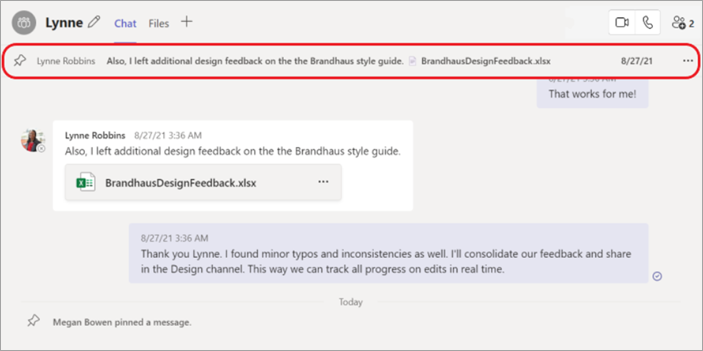
Unpin a pinned chat message
- Go to the pinned message at top of the chat.
- Select More options > Unpin.
Back to Top
Leave a group chat
If you decide to leave a group chat in Teams, do the following:
- Select Chat to open the chat list.
- Find the name of the group you want to leave.
- Select More options > Leave.
If you change your mind, just ask someone to re-invite you to the group.
Remove people from a group chat
To remove people from a group chat in Teams, do the following:
- Open any group chat of three or more people and click View and add participants.
- Hover on the person's name that you want to remove.
- Select Remove and confirm you want to remove the participant from chat.
An update in the chat will inform everyone that you've removed the person. People removed from a chat will be able to view previous chat history, but won't be able to send new messages, react to messages, and won't be able to view new conversations or files shared by the group.
Back to Top
You can make one-on-one or group calls with anyone in your organization directly from a chat without having to host a team meeting. Up to 20 people can be on the same video call. These calls are private and won't appear in any team conversation. Entries for the calls will appear in your chat, though.
- Go to your chat list and select New message to start a new conversation.
- Type the name or names of participants next to To at the top of your new chat.
- Select Video call or Audio call to start a call.
You can also start a one-on-one call from someone's profile card. Open it by selecting their picture in a channel or from a search.
Back to Top