Body
Summary
Microsoft Teams has functionality to send a variety of notifications to users and in this article you will find information that will help you customize how these notifications appear.
- How to change your Teams status
- How to customize the look/feel of notifications
- How to manage which notifications you receive
- Channel and Thread notifications
Change your status
If you want to make sure people know when you’re busy or away from your desk, set your status in Teams. The little dot on your profile indicates if you’re available or not. To change your status, select your profile picture at the top right of Teams. Select your current status to choose another status from the list.
Teams will automatically set the status in some cases, like when you’re on a call.
- Available is when you’re active in Teams and don’t have anything on your calendar (no meetings or calls, for example). Note that Teams will automatically set your status from Available to Away when you lock your computer or when it enters idle or sleep mode.
- Busy is when you want to focus on something, and you still want to receive notifications. If you’re in a meeting or call, Teams will automatically change your status to In a meeting or In a call (Busy) when not set to Do not disturb.
- Do not disturb is when you want to focus or present your screen and don’t want to receive notifications.
Set a status message in Teams
To set your status message in Teams for desktop:
- Select your profile picture at the top right of your Teams window.
- Select Set status message to view options.
- Type the message that you want others to see. If you want people to see your status when they message or @mention you, select Show when people message me.
- Choose how long you want the message to display before clearing by choosing a duration from the Clear status message after dropdown.
- Select Done.
Set a duration for your status
When you want to change your status for a specific period of time (for example, to set Do not disturb for an hour of concentrated work) you can set a duration so that Teams will automatically reset your status at the end of the allotted time. You can set durations for any status except Available. However, a more available status (like Busy) will not override a less available status (like Away) even if its duration is set.
- Select your profile picture > current status > Duration.
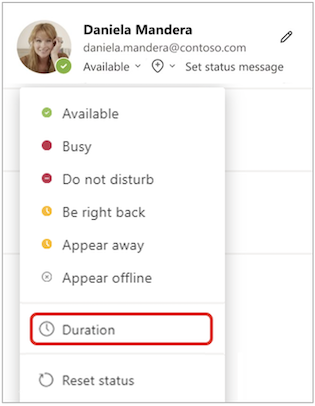
- Under Status, select the status you want to show going forward.
- Under Reset status after, select the amount of time you want that status to last.
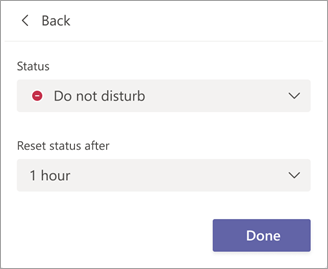
Or, if none of the suggested time frames work for you, select Custom under Reset status after and enter the date and time.
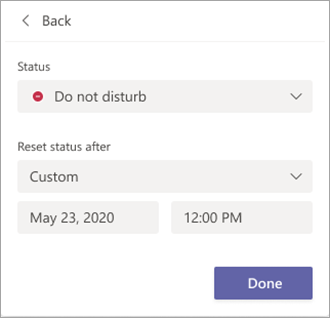
- Select Done.
At the end of the period you entered, Teams will automatically reset your status based on your activity, your calendar, and the state of your computer.
Undo a status duration
Simply select a new status. Alternatively, you can select your profile picture, select your current status, and then select Reset status.
See who's online
If someone is currently available on Teams, you'll see a green circle with a check mark next to their profile picture. To see who on a team is online right now, go to the team name and select More options > Manage team > Members. Everyone who's online right now has the green circle with a check mark next to their name.
Back to Top
General notification settings
Change Teams notifications to receive reminders for messages, meetings, and other activity that are most helpful to you.
- Select Settings and more > Settings in Teams.
- Go to Notifications and activity.
- In General, customize sounds and change when you want notifications to display. Your options include:
- Mute all notifications (except for calls and meetings): Turn this setting on or off. Available on Windows only.
- Play sounds with notifications: Every notification will include a system sound to alert you.
- Play sounds with urgent and priority contact notifications: Differentiate messages market Urgent and notifications from priority contacts.
- Play sound with incoming calls, requests to join, and meeting start notifications: Only incoming calls, requests to join meetings, and meeting start notifications will include a system sound to alert you.
- Show message and content previews in notifications: A short preview of the message or content will be included in the notification.
- Show notifications during calls and meetings: Notifications will be shown even if you're in a call or meeting.
Sound notifications
Assign different sounds to different kinds of notifications to prioritize tasks and reduce distractions. Mute notifications when you're busy or in a meeting.
- Select Settings and more > Settings in Teams.
- Go to Notifications and activity > Sound.
- Select the types of notifications you want to hear sounds for and choose a sound type in each dropdown menu.
- Select Play to preview the sound.
Notifications display
- Select Settings and more > Settings in Teams.
- Go to Notifications and activity > Display.
- Choose to Show message and content previews in notifications for more or less detailed information.
- You can also choose to Show notifications during calls and meetings or turn off this setting for fewer interruptions.
- Choose where you'd like notifications to appear on your screen under Position on the screen. Select Bottom right, Top right, Bottom left or Top left. Change this setting at any time for the most seamless Teams experience.
- Change the size of your message and content previews. Choose Comfy or Compact.
Back to Top
Chat and channel notifications
Customize chat and channel notifications to your personal work style.
- Select Settings and more > Settings in Teams.
- Go to Notifications and activity > Chats and channels.
- Next to each notification type, select the dropdown menu to choose where you want the notifications to appear or select Off to turn that notification type off.
Meeting notifications
Easily configure how notifications are shown for meetings about to start, and meeting chats.
- Select Settings and more > Settings in Teams.
- Go to Notifications and activity > Meetings.
- Meeting start notifications can be turned on or off using the toggle.
- Choose to Show meeting join bar.
- Select your preference in the Meeting chat notifications for meetings I’ve accepted dropdown menu. This setting is on by default.
- Select your preference in the Meeting chat notifications for meetings marked as tentative or no response dropdown menu. This is set to Mute until I join or send a message by default.
- Turn on or off Meet now start notifications.
Calendar notifications
Manage your calendar notifications to customize when you're alerted about meeting invites, updates, cancellations, and when meetings you organized have been forwarded to others.
- Select Settings and more > Settings in Teams.
- Go to Notifications and activity > Calendar.
- Next to each notification type, select the dropdown menu to choose where you want to see the notifications, or select Off to turn them off.
Presence notifications
Receive notifications that update you about your co-workers' statuses. See when people you work with are available or offline.
- Select Settings and more > Settings in Teams.
- Go to Notifications and activity > Presence.
- Select Manage notifications, then enter the name or names of the contacts you want to keep track of.
- Select the correct contact(s) from the list.
- You'll see those contacts appear below the text box. To stop tracking their status, select Turn off next to their name.
Activity notifications
- Select Activity in Teams.
- Select More options > Notification settings.
Activity emails
Set the frequency of summary emails that detail your missed activity or turn them off altogether.
- Select Settings and more > Settings in Teams.
- Go to Notifications and activity > Missed activity emails.
- Choose the frequency you want to receive activity emails from the dropdown menu.
Back to Top
Turn on notifications for specific channels to get the latest updates on new discussions and activity that are most relevant to you.
- Hover on a channel and select More options > Channel notifications .
- From here, you can turn on or off notifications for all new messages or posts (depending on layout).
- You can also choose to show notifications in Activity and banner, or only in Activity.
- For channels in the Threads layout:
- Choose to Include thread replies if you want to be notified when other people reply to a post or message.
- Choose to Follow all new threads if you want to see new replies in Followed threads at the top of your list of chats and channels.
- This setting won't notify you in Activity.
To view notifications for threads you follow, select Followed threads at the top of your chat and channels list.
To manually follow a thread:
- Hover over existing replies on a thread and select Follow.
- Hover over a message in the thread and select More options > Follow thread.
- From the side pane thread view, select More options > Follow thread in the header.
For a particularly important channel, configure your settings to automatically follow all new threads in that channel.
- Hover over a channel name and select More options > Channel notifications.
- Turn on the Follow all new threads toggle.
- Select Include replies to receive notifications for thread replies.
- Select Save.
You'll automatically follow a thread if you replied in the thread, if you're @mentioned in the thread, or if someone else starts a thread from your original message.
Back to Top