Overview
Microsoft Teams allows members of Columbia College to create, schedule, and join virtual meetings for seamless collaboration. This guide covers how to join meetings with or without an account, as well as how to schedule meetings through Teams and Outlook.
Applies to: Faculty Staff
Step-by-Step Guide
Instructions
1 Join a Teams Meeting
You can join scheduled meetings using an email invitation, your calendar, or a unique meeting ID.
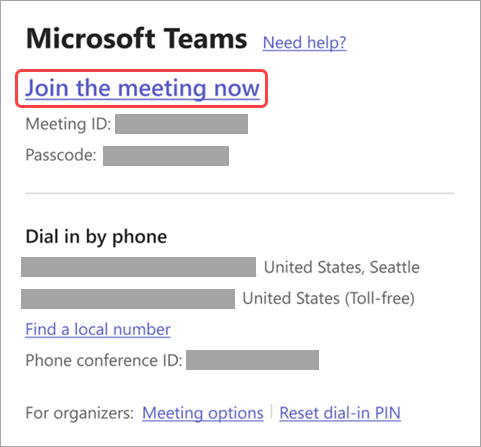
●Join by Link: In your meeting invite, select Join the meeting now. The meeting will automatically launch in the Teams desktop app or web browser.
●Join from Calendar: Select Calendar on the left side of Teams, locate your meeting, and select Join.
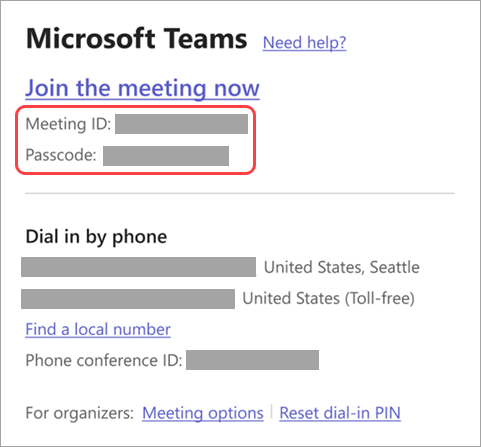
●Join with Meeting ID: In your Teams Calendar, click Join with an ID, enter the meeting ID and passcode (found in the calendar details or invite email), and select Join meeting.
2 Join a Meeting Without an Account (Guest Access)
External guests or users without a sign-in can enter meetings up to 15 minutes before the start time to test audio and video setup.
●Open the invitation link and choose Continue on this browser (Edge or Chrome supported).
●Allow browser permissions for camera and microphone when prompted.
●If verification is required, enter your email address to receive a one-time passcode, enter the code, and select Join now.
3 Schedule a Teams Meeting in Outlook
You can schedule Teams meetings directly from Outlook on the web, New Outlook, or Classic Outlook desktop apps.
●New Outlook & Web: Go to Calendar > New event, switch the Teams meeting toggle to ON, fill in meeting details and attendees, and select Send.
●Classic Outlook: From the Home tab, select New Items > Meeting (or click Teams Meeting in the ribbon), configure options and attendees, and select Send.
4 Schedule a Meeting Directly in Teams
Schedule meetings from your Teams calendar, existing chat threads, or directly inside a team channel.
●From Calendar: Select Calendar > New meeting, fill in the meeting title, attendees, and time, then select Send.
●From Chat: Open the conversation, click More chat options (…) > Schedule a meeting, add details, and click Send.
●From a Channel: In your channel, click the dropdown arrow next to Meet now, choose Schedule a meeting, and send the invite. All members of the channel will receive a notification.
Tip / Meeting Setup
When scheduling meetings with large groups or external participants, check the Set up your Teams meeting pane and select All options to customize lobby settings, presenter permissions, and recording options before sending.
Support & Assistance
Get Help
Need additional assistance scheduling or joining Microsoft Teams meetings?