Overview
Microsoft Teams allows for direct messaging between colleagues. This guide provides step-by-step instructions for starting one-on-one and group chats, sharing files and links, managing conversations, pinning key messages, and initiating audio or video calls directly from a chat.
Applies to: Faculty Staff
Step-by-Step Guide
Instructions
1 Start a One-on-One or Group Chat
You can initiate direct messages with individual team members or create group conversations of up to 250 participants.
●One-on-One Chat: Select New message at the top of your chat list, enter the person's name, type your message, and press Enter or click Send. Alternatively, click their profile card photo to start chatting immediately.
●Group Chat: Select New message, click the down arrow on the far right of the To field to name your group, enter participant names, and send your message.
●Add People: In an active group chat, select View and add participants > Add people, choose how much chat history to share, and select Add.
2 Share Files, Pictures, and Web Links
Share documents, images, and links seamlessly within conversations.
●Insert Links: Click Format beneath the compose box, select Insert link, enter your display text and address, and select Insert (or paste directly over highlighted text using Ctrl+V).
●Attach Files: Click Actions and apps > Attach file, then choose from recent files, cloud files, or upload directly from your device.
●File Previews: Messages with PDFs, images, videos, and 3D files (GLB, STIL, FBX, OBJ) generate inline previews. Select Preview to view without downloading.
3 Edit or Delete Sent Messages
You can revise or retract any message you have sent in a chat or channel.
●Edit: Hover over the sent message, click Edit, make your changes, and select Done.
●Delete: Hover over the message, select More options (…) > Delete. If unsent, expand the compose box via Format and click the Delete icon in the corner.
●Undo Deletion: If deleted by mistake, click Undo directly within the deleted message placeholder.
4 Pin Key Messages for Quick Reference
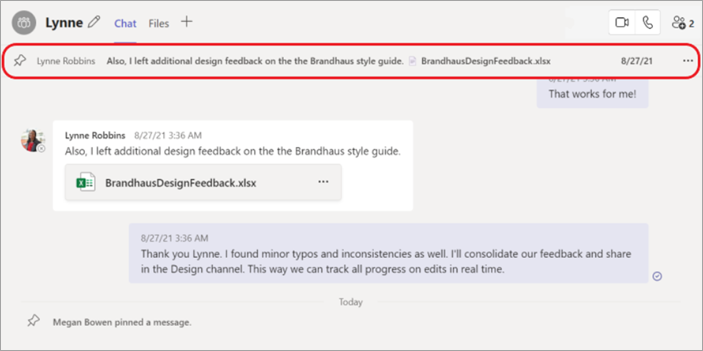
Pin important information to keep it visible at the top of the chat header for all members.
●Pin a Message: Hover over the message, select More options (…) > Pin. The message will appear pinned at the top displaying the original sender and timestamp.
●Unpin: Navigate to the pinned message banner at the top, select More options (…) > Unpin.
5 Manage Group Members and Make Calls
Maintain group membership and escalate chat conversations into calls directly without scheduling meetings.
●Leave a Chat: In your chat list, find the group, select More options (…) > Leave.
●Remove Participants: In a group chat of three or more, select View and add participants, hover over the person's name, and click Remove.
●Start an Instant Call: In any one-on-one or group chat (up to 20 people), click the Audio call or Video call button in the top right corner.
Things to Keep in Mind
Only one message can be pinned at a time in any chat conversation. Additionally, users removed from a group chat retain access to prior message history up to the point of removal, but cannot send replies or view future group updates.
Support & Assistance
Get Help
Need additional assistance using Microsoft Teams messaging features?