Overview
Microsoft Teams provides a wide range of notification and presence settings to help you stay informed without being overwhelmed. This guide explains how to change your availability status, customize alert sounds and screen placement, and fine-tune notification preferences for chats, meetings, and channels.
Applies to: Faculty Staff
Step-by-Step Guide
Instructions
1 Change and Manage Your Teams Status
Let colleagues know when you are available, busy, or away from your desk.
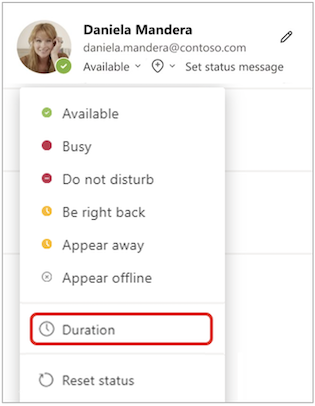
●Change Status: Select your profile picture in the top-right corner of Teams and choose a status (Available, Busy, Do not disturb, Be right back, Appear away, Appear offline).
●Set a Status Message: Select your profile picture > Set status message, enter your custom message, check Show when people message me if desired, set an expiration time, and click Done.
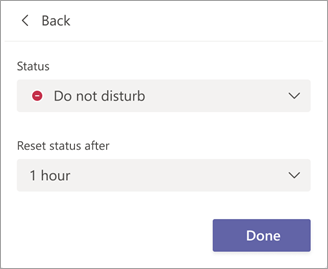
●Set a Status Duration: Select your profile picture > current status > Duration. Choose the desired status and duration period (or Custom) so Teams automatically resets your status when the timer ends.
●Check Who's Online: A green circle with a check mark indicates an available user. To check team availability, select More options (…) > Manage team > Members next to any team name.
2 Customize Notification Sounds and Screen Display
Control where alert banners appear on your screen and which alerts play audio chimes.
●Access Notification Settings: Select Settings and more (…) > Settings > Notifications and activity.
●General & Sound Settings: Under General and Sound, configure notification sounds for incoming calls, priority contacts, or meeting starts. Use Play to sample sound options.
●Display Options: Under Display, toggle message previews, enable or disable alerts during active calls/meetings, set banner position (Bottom right, Top right, Bottom left, Top left), and adjust preview sizing (Comfy or Compact).
3 Configure Chat, Meeting, Calendar, and Presence Alerts
Fine-tune which events trigger banner alerts, activity feed updates, or summary emails.
●Chats & Channels: Go to Notifications and activity > Chats and channels and select how each alert type is delivered (or choose Off).
●Meetings & Calendar: Under Meetings and Calendar, toggle meeting start alerts, the meeting join bar, and customize chat alerts for accepted versus tentative meetings.
●Presence Notifications: Under Presence > Manage notifications, search for specific co-workers to receive an alert whenever they become available or go offline.
●Missed Activity Emails: Under Missed activity emails, choose how frequently Teams sends digest emails for notifications you haven't seen.
4 Configure Channel and Thread-Level Notifications
Follow critical discussions while muting high-traffic channels that don't require your immediate attention.
●Channel Alerts: Hover over any channel name, click More options (…) > Channel notifications, and select whether to receive alerts in Activity and banner or Only in activity.
●Follow Specific Threads: Hover over a thread message and select More options (…) > Follow thread. View tracked discussions by selecting Followed threads at the top of your chat list.
●Automatic Following: You automatically follow a thread if you start it, reply to it, or if you are @mentioned.
Automatic Status & Do Not Disturb Behavior
Teams will automatically update your status to In a meeting or In a call based on your Outlook calendar and active calls. When your status is set to Do not disturb, all banner notifications and sounds are silenced so you can concentrate or present without interruption.
Support & Assistance
Get Help
Need additional assistance managing Microsoft Teams notifications or settings?